
How to Plan a Trip with Google Maps: an Easy Step-by-Step Guide

Here is everything you need to know on how to plan a trip with Google Maps – an easy step-by-step guide to help you plan and take your bucket list trip!
Google Maps is an incredible tool for trip planning and is something I use a ton in my own travels, especially after traveling the world solo for a year+! Planning a trip can be overwhelming and time-consuming though, so being able to utilize Google Maps during your planning can greatly help streamline your planning process. Google Maps is great not only for directions between points, but can also give you estimated travel times, suggestions for food, gas, & places along the way, and more.
In this blog, I’m sharing an easy step-by-step guide on how to plan a trip with Google Maps to help save you time and effort on planning your bucket list trip!
Disclaimer: This blog post may contain affiliate links, which means I get a small commission if you click the link and make a purchase – at no extra cost to you! I only share things I genuinely love and think my audience would love too! This is one of the ways I’m able to keep making these free resources and guides for you. Thank you so much for your continued support! Learn more about my affiliate policy here.
How to Plan a Trip with Google Maps: an Easy Step-by-Step Guide
Why use Google Maps?
Google Maps are highly customizable, easily shareable, best of all, it’s free! Google Maps is constantly being updated and has a ton of additional information and reviews on landmarks, restaurants, and more. These reviews can help you plan your trip and figure out what sounds best to you. Google Maps also integrates with other Google apps; such as saving your map to your Google Drive. And if you’re a visual person, seeing your itinerary mapped out on your Google Map can be incredibly helpful. You can get a feel for where things are and preemptively start learning the landmarks of your destination, making it easier to get around once you’re on your trip.

1. Pick your destination
First things first, figure out WHERE you’d like to go for a trip & decide the scope of it. Do you want to go on a road trip around New Zealand? Would you like to explore the city of Paris? Or are you planning a multi-country trip? You don’t quite need to figure out yet how to get around; as the planning process of Google Maps will help you figure out whether your plans are realistic (just a couple hour drive, short train ride, etc), or whether two places are WAY too far apart to realistically visit. Trust me: you actually won’t want to try to do it all!

2. Research where you’d like to visit & create a list
Once you’ve decided on your general destination & the rough scope of the trip (i.e. single city vs multiple destinations in a country vs. multiple countries vs. road trip or other), start researching where you’d like to visit and which activities sound best. This can be as easy as just typing “best things to do in X” into Google where X is your destination of choice. I’d recommend reading blogs (like this one!), searching on Pinterest, and searching on social media sites such as Instagram. From these, create a list of places that sound best, and include everything that sounded great, such as landmarks, parks, restaurants, points of interest, and more.
Read this next!
3. Optional: read reviews
If you are a high-key planner like me, you might like to quickly run through the Google or TripAdvisor reviews of each place you’ve picked and decide whether to remove some of the places from your list. Just remember to take reviews with a grain of salt – there will always be negativity, but maybe it’s something that wouldn’t bother you or is overblown. That being said, if multiple people negatively report on the same thing, it’s a good sign you can take the reviews at face value.

4. Create a new Google Map
Start by logging into your Google account so that your Google Map will be saved into your account. If you don’t have an account yet, go ahead and create one. Head over to www.google.com/mymaps next and tap “Create a New Map” – if you don’t see this red button, tap the three-line menu option to find it there. If Next, give your map a title and if you’d like, a description as well.
Read this next!

5. Add location pins to your map
Referencing your list of saved places from your destination, start adding places one-by-one. Simply type the location into the search bar, and as you search, you might encounter a few different options; just select the one you want. Google will then drop a green pin on the map, and all you have to do is click “Add to map.” Once you’ve clicked this, the pin will turn blue and you will see it pop up on the left-hand menu. Repeat this for each of your locations / places of interest / restaurants / hikes / etc until you’ve finished your list.

Tip: if you can’t find the exact location or point of interest, try first Googling the location on Google search to check that your spelling is correct, or if the destination has a different name. If you’re still running into a roadblock, you can actually add pins by a location’s coordinates – just type the latitude and longitude into the search bar. Google will again drop a green pin; click on it and hit “Add to map.” You can also pin manually by selecting the pin icon beneath the search bar, “add marker”, and tapping anywhere on the map to add a pin. Hit “save” and you can then re-name the pin and add a description as well.

Tip 2: if you’ve made a mistake, all you have to do is tap on a pin to pull up a couple menu options (style, edit, add photo or video, directions to here, and delete place) and hit the trash icon to delete a pin.
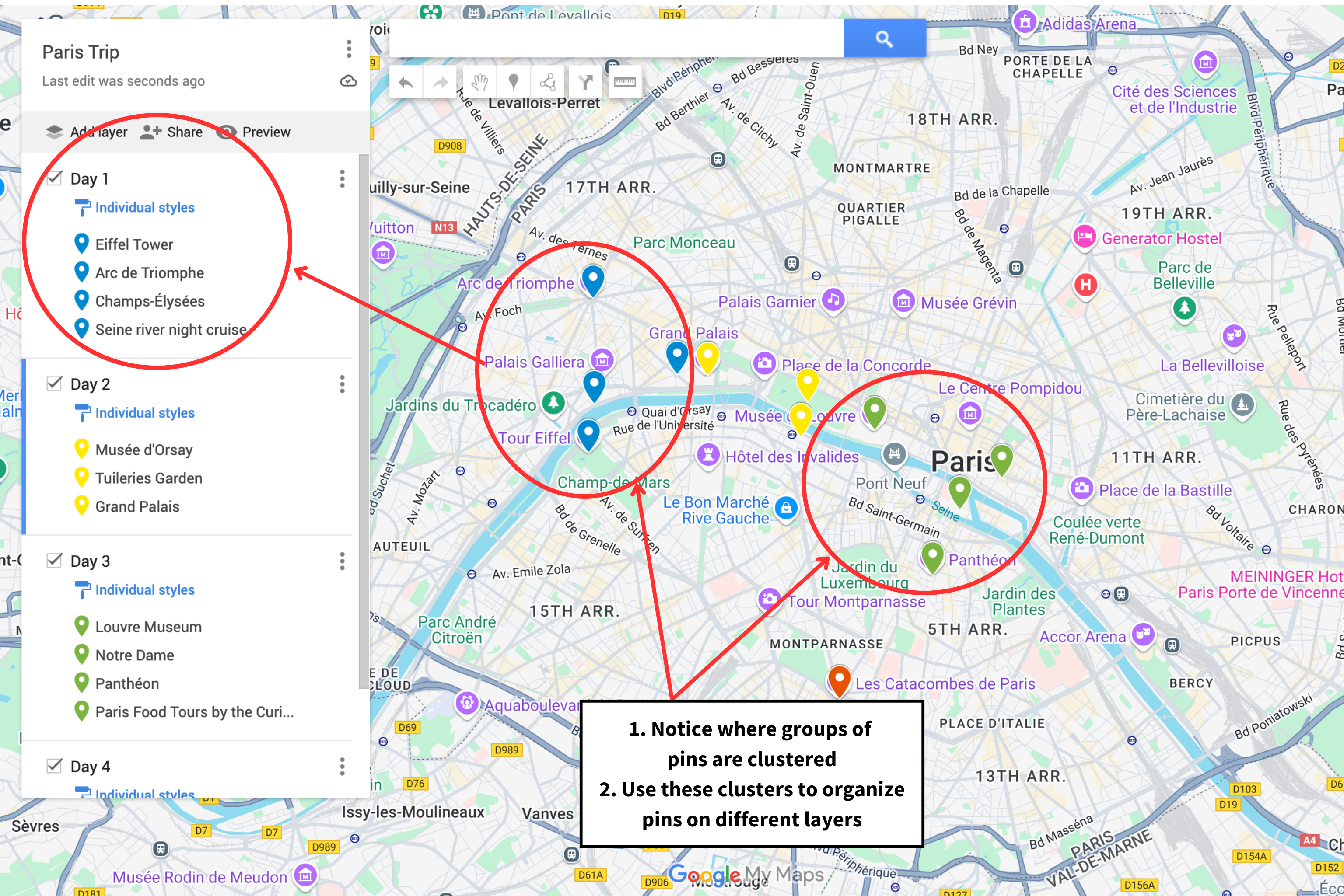
6. Use the pin clusters to figure out your itinerary & accommodation
Once you’ve got your pins input into your map, you might start to see clusters form that encompass multiple landmarks/tours/etc all in the same area. This can be helpful in figuring out your itinerary; such as seeing all of one cluster on day 1 of your trip, and another cluster on day 2 of your trip – saving you trucking back and forth over a city or country all day.
You can also use clusters of pins to help you figure out where to book your accommodation; by comparing the map of accommodation options with your own Google Map, you can make sure you stay close to all your sightseeing locations and activities. No more accidentally booking an accommodation too far away! Tip: book your accommodation by a local public transit option AND your map pins for the PERFECT location! This could be a bus stop, metro station, or even just a public overnight parking lot for your car.

7. Create layers to break down your trip
Now that you can see your pin clusters, you can create different layers to break down your trip. This can be anything you like; such as a layer for each day of the trip, a layer for different categories like tours vs restaurants, or any other way that makes sense for you and will help you streamline your trip.
To create a new layer, just tap “Add layer” on the left menu bar, under your map title. From there, you can tap the three dots next to the layer to rename it or to delete it.To add a pin to a particular layer, simply click on it to select it. If you mess up, you can just click and drag your pin to the correct layer. If you wish to hide a layer, just click the checkbox by its title, and recheck it to show the later again. Tip: you can only make 10 layers, so don’t go too crazy!

8. Customize your pins & add notes
Customize your map even more by adding notes, photos, or videos to each of your pins. This can be something like recording notes to help you remember what is at each stop, or maybe adding notes after you’ve visited to help you remember your favorite part about that location. Adding photos can be helpful too to help you remember which site is which and what you are visiting looks like.
You can also change the color and icon of the pins – I like changing the pins for each layer personally, but you can color code these in any way that makes sense. You could have, for example, red for landmarks, blue for restaurants, and green for hikes. To change either the color or pin icon, simply tap on the pin you’d like to edit, and then hit the little color button on the right hand side, which will open up a customization menu. There you can also change the pin icon – such as a little hiker icon for hikes, a hotel icon for where you are staying, and so on.

9. Get directions to multiple destinations
If you’re planning a road trip, or just directions to walk from point A to point B, you can add driving directions to your Google Map as well. Just click the “Add directions” button underneath the search bar. This will open up a new layer. Once again, you can rename the layer if you’d like, or let it auto-rename. Type your point A into the first box OR tap on any of your pins to put it as point “A”. Do the same for point “B”! You can also tap on the car icon to change the directions from driving to walking or biking. Add more stops as needed, but note, you’ll only be able to add up to 10 different destinations.
Tip: make sure to re-order the stops to make sense – you don’t want to zig-zag all over the place! If you tap the three dots by the layer title, you can open up the “Step-by-step directions.”
Tip 2: you can also adjust your route by tapping on the blue route and dragging the dot that appears to the street you’d rather drive/walk down.

10. Share your map & access it on your phone
You’ve done it! You’ve made your Google Map for your trip and your trip planning is almost finished! If you’d like, you can easily share your map with friends or family by tapping the “Share” button below your map title. You’ll be able to share it as a link, via Google drive, or even have it be searchable on Google!
Now to access the map on your mobile device (for those helpful driving or walking directions you created!), download and open up the Google Maps app on your phone – make sure you’re logged in! Tap on the search bar, scroll to the right, and find the button labeled “More”. Tap this and you’ll see your “Saved” lists. Scroll to the bottom and hit “Maps”. Tap on your map and it will open up! Hit “view map legend” to see all of your stops. If you’re ready for directions, just tap on a pin or tap on the route if you already made a directions layer.

Tips for Using Google Maps
- Finding your map on desktop: If you already have a map, to easily find it in your browser, just sign into your Google account and then head over to www.google.maps.com. From there, just hit the three-line menu option, select “Saved”, and then hit the “Maps” tab, and select the name of the map you’ve created.
- Downloading your map offline: Unfortunately, there is no option to fully have your map available offline, BUT to get around this, create a custom offline map in the Google Maps app (tap your profile icon, “offline maps”, and “select your own map”). You’ll still be able to see your plan then, as long as it is in the confines of the area you downloaded. If your map doesn’t pull up for some reason, it unfortunately might mean you’ll need to repin all of your pins by searching for each location and hitting “Save”, then adding the pin to a new list or an existing list. Honestly, this just depends on which version of Google Maps app you have.
- Use Google Maps to brainstorm & save ideas for later! Just because you don’t have a trip planned doesn’t mean you can’t start creating a map for a future trip!
Have you used Google Maps to plan your trip? Do you have any questions about how to plan a trip with Google Maps? Ask me anything in the comments below or let me know what travel tips you’d like to learn next!

More adventures

Best London Christmas Markets & Tips for Visiting London at Christmas
Twinkling chalets, steaming cups of mulled wine, and Tower Bridge glowing in the background – here's everything you need to know about the London England Christmas markets!If there's one city that does Christmas BIG, it's London. From the moment the first lights go up...

15 Best Places to See Fall Foliage in West Virginia That You Can’t Miss (+ When to Go)
Planning a leaf-peeping trip to West Virginia? Here are the 15 best places to see fall foliage in West Virginia – plus exactly when to go, where to stay and how to get around!I've traveled to nearly 50 countries, and I can tell you with total confidence – fall foliage...

Hey I’m Rebecca!
I’m a travel & outdoors photographer, blogger, and content greator living in the US but you can find me adventuring around the globe! On this blog I share tips to help you improve your photography, inspiration and advice to explore the outdoors, destination guides, travel tips, and more to plan your own adventures!
Categories
Photography
Destinations
Travel
National Parks
Recent posts

12 Festive Things to Do in London at Christmas: Best Lights, Trees, Activities, and More
Twinkling lights, giant Christmas trees, ice skating, and festive afternoon tea – here are the best things to do in London at Christmas!If there's one city that does Christmas BIG, it's London. From the glowing angels floating above Regent Street to the wrapped-up...
Best London Christmas Markets & Tips for Visiting London at Christmas
Twinkling chalets, steaming cups of mulled wine, and Tower Bridge glowing in the background – here's everything you need to know about the London England Christmas markets!If there's one city that does Christmas BIG, it's London. From the moment the first lights go up...
15 Best Places to See Fall Foliage in West Virginia That You Can’t Miss (+ When to Go)
Planning a leaf-peeping trip to West Virginia? Here are the 15 best places to see fall foliage in West Virginia – plus exactly when to go, where to stay and how to get around!I've traveled to nearly 50 countries, and I can tell you with total confidence – fall foliage...


0 Comments